Scripting languages are nothing new. From the DOS batch file you wrote years ago, through to the ASP code that drives your website, scripting languages are a good solution to certain problems. However, the Delphi community in general seems to have been slow to latch on to scripting languages. Maybe it's the Visual Basic connotations in VBScript, maybe it's the fact that these languages are interpreted, or maybe it's just that a lot of developers associate scripting with web applications and don't look any further.
However, once you realise how easy it is to use scripting with your Delphi application. The ability to run external scripts from within your application, and give those scripts access to whichever parts of your application you wish, starts to suggest some interesting possibilities. The fact that these scripts can be changed with nothing more than a text editor, by end-users already familiar with writing macros in Microsoft Word, without requiring you to recompile your application is an extremely powerful (and possibly a little scary) proposition.
In this paper I'll show you how to use the Microsoft ActiveScripting technologies to achieve everything we've just mentioned. While there is more to these technologies than can be covered by a single paper, by the end of this paper you'll know more than enough to start planning how you can use this technology in your application.
Setting Up
While there are a number of methods available to run scripts from Delphi
applications, we're going to be using the Microsoft Scripting Control,
which is available for download from http://www.msdn.microsoft.com/scripting/.
Once you've downloaded and run the installation, start Delphi and go to the Component | Import ActiveX Control... menu. Scroll down to the Microsoft Script Control as shown below, then click Install to install the component into Delphi's palette.
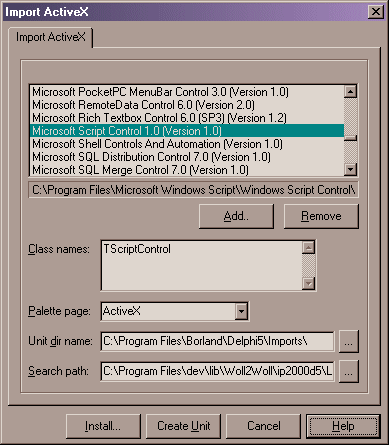
What you should end up with now is a TScriptControl component on your ActiveX tab. That's it, you're setup and ready to go!
Running a simple script
Before we talk about the ActiveScript architecture, let's get our feet
wet by running an extremely simple demo. Don't worry, we'll cover more
complex issues later on.
Start a new application, and drop a TButton, a TEdit and a TScriptControl onto the main form. Put the following text into the Text property of Edit1:
MsgBox "Hello World"
Then, in the OnClick event of Button1, put the following code:
ScriptControl1.ExecuteStatement(Edit1.Text);
What this code does is pass whatever script command is typed into Edit1 to the ScriptControl to be executed. Lastly, in the OnShow event of the form, put the following code:
ScriptControl1.SitehWnd := Self.Handle;
ScriptControl1.Language := 'VBScript';
What this code does is firstly, pass the ScriptControl a reference to our Form's Window handle. It needs this so that any dialogs, etc that the script might display will be "parented" to our window. For example, if we left this line out, we coudl show a Modal dialog box (like MsgBox) but still switch away from it back to our main form.
The second line of code tells the ScriptControl to use the VBScript engine when evaluating this script statement. More about this later.
That's it! Run your application and press the button. You should see something like this:
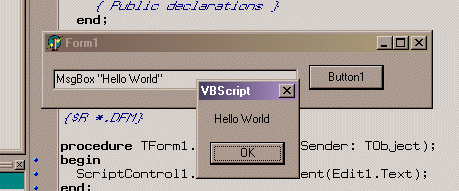
Your Delphi application has executed an external VBScript in a few easy steps. There are plenty more cool things we can do, but for the moment, just to silence the cynics out there, let's take it further. Don't close your app, but try changing the contents of Edit1 at runtime, then press the button again. Provided you've entered valid VBScript, you should see different behaviour. If you don't know much VBScript, try entering the following text:
InputBox "Enter some text"
So, before we push on, let's have a look at what's happening under the
covers.
How it all works.
Microsoft ActiveScript is basically 2 related COM objects: the scripting
engine and the scripting host. The scripting engine is the COM object
that actually processes the scripts, ie. VBScript, JScript, etc. This
is usually provided by a third party, in the case of VBScript, it's provided
by Microsoft.
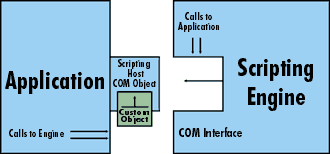
Thanks to Tom Stickle for the diagram
The scripting host is a COM object that is grafted on to our application. The scripting host is mostly responsible for the interaction between our application and the scripting engine. Any custom objects we want to expose to the script are exposed via the scripting host, and any calls our application wants to make to the scripting engine are also done via the scripting host.
If you want to talk directly to the ActiveScript objects themselves, you'll usually end up writing the scripting host yourself, by implementing a bunch of COM interfaces. However, Microsoft have written a generic scripting host in the form of the Script Control, that can be simply dropped onto the form like any other component. This Script Control already implements the interfaces we would have to otherwise implement manually. This is how we managed to have script running in a few steps, instead of after half an hours work.
So in the application we wrote a few moments ago, the ScriptControl was acting as our scripting host. When we called ScriptControl1.ExecuteStatement, the ScriptControl loaded up the scripting engine specified by the Language property (if it wasn't already loaded), passed the script we entered into the edit box to the scripting engine and requested it be executed.
Different Scripting Languages
So what if your end users don't know much VBScript? Well, simply by swapping
out the VBScript scripting engine for, say a JScript engine, or a Python
engine, etc, our application can execute scripts written in a bunch of
different languages, and remain fairly ignorant to the fact.
For example, once the JScript engine is installed, we can simply change the ScriptControl Language property to "JScript" and then it will interpret all scripts passed to it as JScript. Set this property from an INIFile, and you won't even have to recompile your application.
There are a bunch of scripting engines compatible with ActiveScript available from http://www.mindspring.com/~mark_baker/langgen.htm. These cover such languages as VBScript, JScript, Python, Perl, Haskell, Ruby and others. Interestingly, at BorCon2000 in San Diego, mention was made on a few occasions to an ObjectPascal scripting engine that was on the drawing boards for a future version of Delphi. When and if we actually get our hands on this remains to be seen, but I'd certainly be a lot more comfortable writing scripts in Pascal than in VBScript.
But the point is that you don't have to decide which language to use...with a little forethought, you can let your end-users chose.
Procedures and Parameters
However, the example we've done isn't very powerful. What would be nice
is if we could execute specific procedures defined in the script. This
way, we could allow our users to put some code into a specific, named
procedure and call that procedure in response to events in our application,
passing relevant information along as parameters. What this starts to
resemble is the Delphi event model, but with the benefit of being extensible
without requiring a recompile.
So, let's give it a try. Start a new application, drop a TMemo, a TButton, 2 TEdit's and a TScriptControl onto the form. It should look something like this:
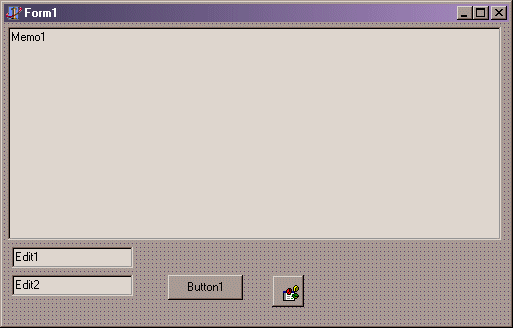
Add the same code as before to the Form's OnShow event, to set up the language and the window handle. In the Memo1.Lines property, put the following lines of VBScript code:
Function Hello(Name)
MsgBox "Hello " & Name
End Function
Function Goodbye(Name)
MsgBox "Goodbye " & Name
End Function
Looking at the VBScript above, we've defined two functions, one called Hello, one called Goodbye, which both take a single parameter called Name. Next, add the ActiveX unit to your uses clause and in the Button1.OnClick event, type in the following code:
procedure TForm2.Button1Click(Sender: TObject);
var
Params : PSafeArray;
v : Variant;
begin
v := VarArrayCreate([0, 0], varVariant);
v[0] := Edit1.Text;
Params := PSafeArray(TVarData(v).VArray);
ScriptControl1.AddCode(Memo1.Lines.Text);
ScriptControl1.Run(Edit2.Text, Params);
end;
Now there's a bit more code here than in the last example, so let's walk
through what's going on. We've declared a couple of variables which we'll
get to in a second, but the first thing we need to do is set up any parameters
we are going to pass to our functions. The parameters have to be held
in a VarArray for passing to the scripting host, so we create a new VarArray
of the size we want (1 item in this case), then we set the value of that
array item to whatever text has been typed into Edit1. This will be the
value of our Name parameter. However, we're not done, as we actually need
to pass a PSafeArray to the scripting engine, so the next line of code
puts a pointer to our VarArray into the Params variable. Be aware that
it's up to us to make sure that the number and types of parameters we
load into the array match the signature of the function we are calling.
Now we can actually load the script as defined in the memo into the ScriptControl. Don't be confused by this, we could just as easily have loaded this script out of a file, a database, wherever you can store a string.
The last line of code is a call to the Run method of the ScriptControl. It takes 2 parameters: the first, the name of the particular method we wish to execute, wihc we're getting out of the second edit box. The second parameter is where we pass in our array of parameters we wish to be handed to the VBScript function.
Run the application and put your name into the first edit box and either
Hello or Goodbye, being the names of the functions, into the other. pressing
the button should result in the correct function being run, and the parameter
value we specified being displayed.
Functions
Well, that's all well and good for procedures, but how do it get return values from a function?
Well, this is surprisingly easy. The following piece of VBScript defines a function that converts Fahrenheit into Celsius:
Function Celsius(fDegrees)
Celsius = (fDegrees - 32) * 5 / 9
End Function
You can set up the parameters and call this function in the same way you called the previous examples (look at the ReturnValues project in the accompanying source code if you're not sure), but when you make the call to run, do it like this:
ReturnValue := ScriptControl1.Run('Celsius', Params);
where ReturnValue is a Variant. You can then convert this value to a String to put into a Label, or whatever else you wish to do with this.
No Parameters
Now that we know how to pass parameters into methods, you'd think that
calling a method that takes no parameters would be a piece of cake, no?
No, actually. It took quite a bit of digging to discover how to do this.
The reason is that under VB, the ScriptControl exposes a version of the
Run method that doesn't expect the Params parameter. Delphi's wrapper,
however, does not expose this version for some reason. So how do we do
it?
Well, 3 different ways as far as I can tell, depending on your requirements. The simplest way to call a method with no parameters is to use the ExecuteStatement method we looked at before, just supplying the name of the method you wish to call. However, this won't work if you are calling a function (ie. expecting a return value)
If you are calling a function then one way to achieve it is to access the the ScriptControl via a Variant, and then rely on Late Binding to give you access to the version of the Run method which takes no Params parameter:
procedure TForm2.Goodbye1Click(Sender: TObject);
var
varScriptControl : Variant;
begin
ScriptControl1.AddCode(Memo1.Lines.Text);
varScriptControl := ScriptControl1.ControlInterface;
varScriptControl.Run('Goodbye');
end;
While this is fairly easy, Late Binding comes with a performance penalty,
and you lose the benefits of CodeInsight. However, in some cases this
may be acceptable.
For those of you still shuddering at the sight of that last bit of code, muttering things like "smelly hack", well, have a look at this:
procedure TForm2.Button3Click(Sender: TObject);
var
Bounds : array [0..0] of TSafeArrayBound;
Params : PSafeArray;
begin
Bounds[0].cElements:=0;
Bounds[0].lLbound:=0;
Params:=SafeArrayCreate(varVariant, 1, Bounds);
ScriptControl1.AddCode(Memo1.Lines.Text);
ScriptControl1.Run('Goodbye', Params);
end;
We build a single element array of TSafeArrayBound items, then access
the single memeber and set it's cElements and lLBound members to 0. We
can then create a SafeArray in our Params variable, but using our Bounds
array, we can indicate that our SafeArray has no members. We can then
happily pass this into our Run method, and achieve the same result as
our earlier, Late Binding hack. Which one of these you use, is , of course,
entirely up to you.
Errors
What we've been doing so far has assumed that everything in our scripts
will run successfully. However, what happens when something does go wrong?
Well, as we're currently using it, the ScriptControl will throw an EOLEException
if it finds an error, either while parsing the script to make sure it
is syntactically correct (which happens in response to the AddCode call)
or for runtime errors like parameter type mismatches etc.
You can catch these exceptions using a try..except clause in the usual manner. However, their is an alternative. The ScriptControl exposes an Event called OnError, which, not surprisingly, fires whenever a runtime error occurs. It also exposes a bunch of properties that gives us more detail about the last error that occurred, such as Description, Line, Column, Number (Error Number), and Text (a snippet of the source code surrounding the error). The Script Control will abandon execution of the script after the first error.
Exposing your Application Objects to Script
What we've done so far is certainly fun, but the usefulness of running
scripts that don't have access to any of your application is limited in
it's usefulness. Where things get really interesting is when we expose
selected pieces of our application logic to the script. This allows incredible
opportunity for end-user extensions to your application. What's extra
cool is that this is pretty easy, once you've done a simple example.
The first thing to note is that any functionality we wish to expose needs to be wrapped up as an Automation object. That isn't to say that the logic needs to reside in the Automation object, but your application will need to "house" some Automation objects that delegate their operations to the rest of your application. Let's have a look at an example.
With the sourcecode accompanying this paper, you'll find a Delphi project called ExposingObjects.dpr. Let's have a look through what it does.
Firstly there's a form which contains 2 TEdits, 2 TButtons, a TMemo, a TShape, 3 TLabels,, a TColorDialog and TScriptControl, arranged like this:
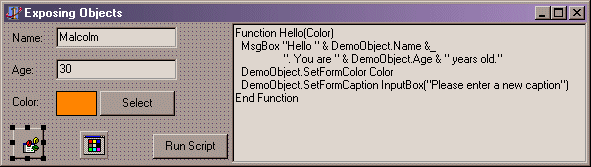
Ignore the contents of the Memo for the time being. What we want to do is allow the script access to a few things:
The values in the Name and Age Edit boxes,
The ability to set the Form's Color property, and
The ability to set the Form's Caption.
As a first step, we're going to implement some methods in our main form to that contain the logic to achieve each of these items we want to expose to our script. This isn't absolutely necessary (you'll see later how we could do implement it directly in our Automation object) but it gives us the opportunity to share the same logic between the code in our application and the code in our script. Here are the methods we've added to our Main form:
function TForm5.GetAge: Integer;
begin
try
Result := StrToInt(edtAge.Text)
except
on E : EConvertError do
Result := 0;
end;
end;
procedure TForm5.SetAge(Age: Integer);
begin
edtAge.Text := IntToStr(Age);
end;
function TForm5.GetMyName: String;
begin
Result := edtName.Text;
end;
procedure TForm5.SetMyName(AName: String);
begin
edtName.Text := AName;
end;
procedure TForm5.SetFormColor(AColor: TColor);
begin
Self.Color := AColor;
end;
procedure TForm5.SetFormCaption(ACaption: String);
begin
Self.Caption := ACaption;
end;
Each of these is fairly straight forward. The Select button contains the
following code in it's OnClick event:
if ColorDialog1.Execute then
Shape1.Brush.Color := ColorDialog1.Color;
Which basically allows us to set the TShape's color. In the Run Script button's OnClick event, we have the same code as in the previous example, with the exception that the parameter we're passing is the value of Shape1.Brush.Color.
In order to let our script access to our application, we need to add an Automation object. Use the File | New menu, select the ActiveX tab and choose the Automation Object wizard. In the resulting dialog, enter TExposingObjectsDemo in the CoClass Name edit box. Take the default values for the other settings and press OK. Save the unit that was created as uAutoObject.pas.
If you view the Type Library Editor, we can add some properties and methods to the IExposingObjectsDemo interface. In this case, we added:
a property of type VARIANT called Name
a property of type int called Age
a method called SetFormColor which takes a single IN parameter of type OLECOLOR
a method called SetFormCaption which takes a single IN parameter of type VARIANT
The Type Library Editor should look something like this:
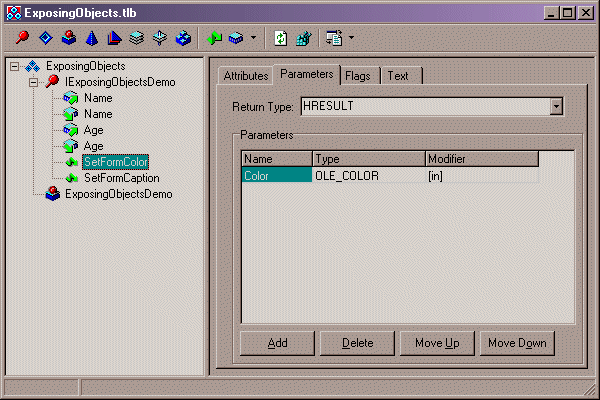
Click on the Refresh button, which should update the uAutoObject.pas unit with stub methods for each of the items we just added. Add the main forms unit to the implementation uses clause, then complete the stub methods like this:
function TExposingObjectsDemo.Get_Age: SYSINT;
begin
Result := Form5.GetAge;
end;
function TExposingObjectsDemo.Get_Name: OleVariant;
begin
Result := Form5.GetMyName;
end;
procedure TExposingObjectsDemo.Set_Age(Value: SYSINT);
begin
Form5.SetAge(Value);
end;
procedure TExposingObjectsDemo.Set_Name(Value: OleVariant);
begin
Form5.SetMyName(Value);
end;
procedure TExposingObjectsDemo.SetFormColor(Color: OLE_COLOR);
begin
Form5.SetFormColor(Color);
end;
procedure TExposingObjectsDemo.SetFormCaption(Caption: OleVariant);
begin
Form5.SetFormCaption(Caption);
end;
Basically, we're delegating the implementation of each of these methods
to the methods we created earlier in our Main Form.
Let's just recap before we continue. We've created a bunch of methods in our main form to manipulate various properties. We've created an Automation Object with properties and methods which delegate to these main form methods. What we still have to do is make this object accessible to our script. We do this in the OnShow event of our main form:
procedure TForm5.FormShow(Sender: TObject);
begin
ScriptControl1.SitehWnd := Self.Handle;
FAutoObject := TExposingObjectsDemo.Create;
ScriptControl1.AddObject('DemoObject', FAutoObject, True);
end;
The first line is one you should be familiar with by now, passing the ScriptControl a refernce to our form's window handle. It's the next 2 lines that interest us. We create an instance of our Automation object (FAutoObject is declared in the Private section of our form, as type TExposingObjectsDemo. We also added our uAutoObject to our main forms interface uses clause). Then we call ScriptControl1.AddObject passing it 3 parameters:
A string representing the name that our Automation object will be visible visible as from our script. In this case, I've chosen "DemoObject"
The second parameter is the IDispatch interface of our Automation object. Delphi will do the QueryInterface on our Automation object for us.
a boolean indicating if we want the members of our Automation object to be globally accessible.
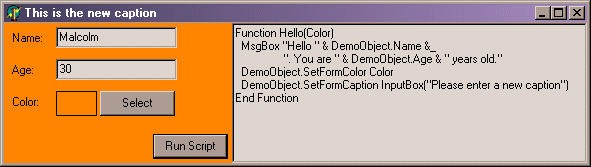
Now that we've called AddObject, our Automation object, and by extension selected parts of our application logic, is available to our script. Now, let's have a look at the script contained in the Memo:
Function Hello(Color)
MsgBox "Hello " & DemoObject.Name &_
". You are " & DemoObject.Age & " years old."
DemoObject.SetFormColor Color
DemoObject.SetFormCaption InputBox("Please enter a new caption")
End Function
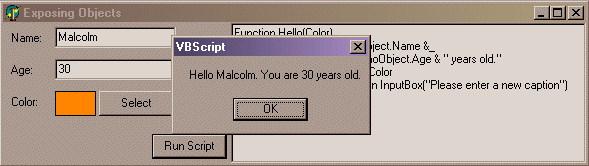
The first thing to notice is that the function takes a parameter called Color. Remember, the value we're passing in here is taken from the Shape1.Brush.Color property. The first line simply shows a dialog with a string, however, the string is built by concatenating together values taken from the edit boxes on our main form, via our Automation object.
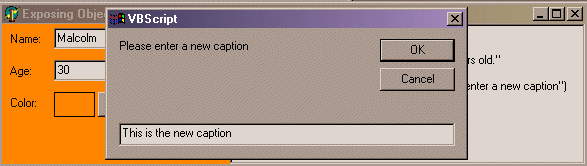
The next line calls our Automation object's SetFormColor method to change the forms color to whatever value was passed in as the parameter to the method. Lastly, we're calling the SetFormCaption method of our Automation object, but what we're passing as the parameter is the return value from another VBScript function, InputBox, which prompts the user to enter a string. The following screen shots show the flow of this script.
Think about what we've just done for a second. We've got external VBScript
running, reading values from within our Delphi application, changing property
values within our Delphi Application, all without any recompilation. This
is way cool!
Debugging your Scripts
Well, I hope you are starting to appreciate what a powerful technique
scripting can be. However, we've kind of been kidding ourselves here.
We've assumed that apart from runtime errors, all the script that we write
is going to be free of errors. The algorithms we write are just going
to work, right? Well, I don't know about you, but the algorithms and logic
I write in Object Pascal are rarely correct first go, and my VBScript
skills are much worse than my Delphi skills. Add to this, that potentially
other people (even users!) may be writing script to run in your application,
then we'd better look at how we can help.
Well, if this were pure Delphi, we have access to a very sophisticated debugger to step through our code. Thankfully, in ActiveScript we have access to a similar, but much less sophisticated, debugger. Also available for download from http://www.msdn.microsoft.com/scripting is the Microsoft Script Debugger. Download this and install it. Then, according to the instructions that come with it, all you have to do to invoke the debugger is to place a Stop statement (in VBScript at least) inside your script, and this will act as a breakpoint. When execution hits the Stop statement, the debugger will start, load your script and position the cursor on the line of execution. You can then Step into and over method calls, view a stack trace, and with a little effort, view and even change the value of variables. Simplistic, but very useful. Installing the debugger will also enable Just In Time debugging of your scripts. If a runtime error occurs, you'll be prompted to start the debugger at the point of error.
Now, for those of you who got so excited by this that you raced off, downloaded the debugger and tried to use it, right about now you're probably muttering all sorts of abuse about me, because it doesn't work like I outlined. Well, that'll teach you for being impatient. I was just about to add that while all of the above is how it's meant to work, you need to do alittle registry editing before it will actually work as Microsoft outline. Why? Well, with the release of the new version of Script Debugger, Microsoft changed the default setup from enabling debugging by default to disabling debugging by default. They just forgot to document it. All you need to do, however, is to add a new REG_DWORD Value in your registry at:
HKEY_CURRENT_USER\Software\Microsoft\Windows Script\Settings\JITDebug = 0x1
A Value of 0x1 will turn on debugging support, a value of 0x0 will turn it off. Be aware, however, that this turns on and off script debugging for the entire machine, so any scripts that run in any ActiveScript application on your machine will prompt you for debugging when an error occurs. You should also be aware that you are not allowed to distribute the Script Debugger to any of your clients who may want to write scripts. They are free to download it from the Microsoft website, but you are not free to ship it to them on a CD.
Possibilities
It doesn't take too long playing with the Script control to start dreaming
up all sorts of possibilities. Workflow applications that allow users
to write script that will execute in response to events in your application.
The ability to externalise certain calculations from your application,
such as tax calculation, so that your apps can be customized for different
requirements without needing a recompile. Or go all the way and store
all your business rules in a database as scripts, and call them from your
Delphi Business Objects. Whatever you end up doing, hopefully this article
has given you enough information to get started. As I said earlier, their
is more to ActiveScript that we've discussed here, although this certainly
covers everything your likely to do in most applications.